Client Operations
Working with individual ERP Pro clients
Client Operations
Client Operations provides access to operational tools and features for individual ERP Pro clients. This page guides you through the available operations and how to use them.
Accessing Client Operations
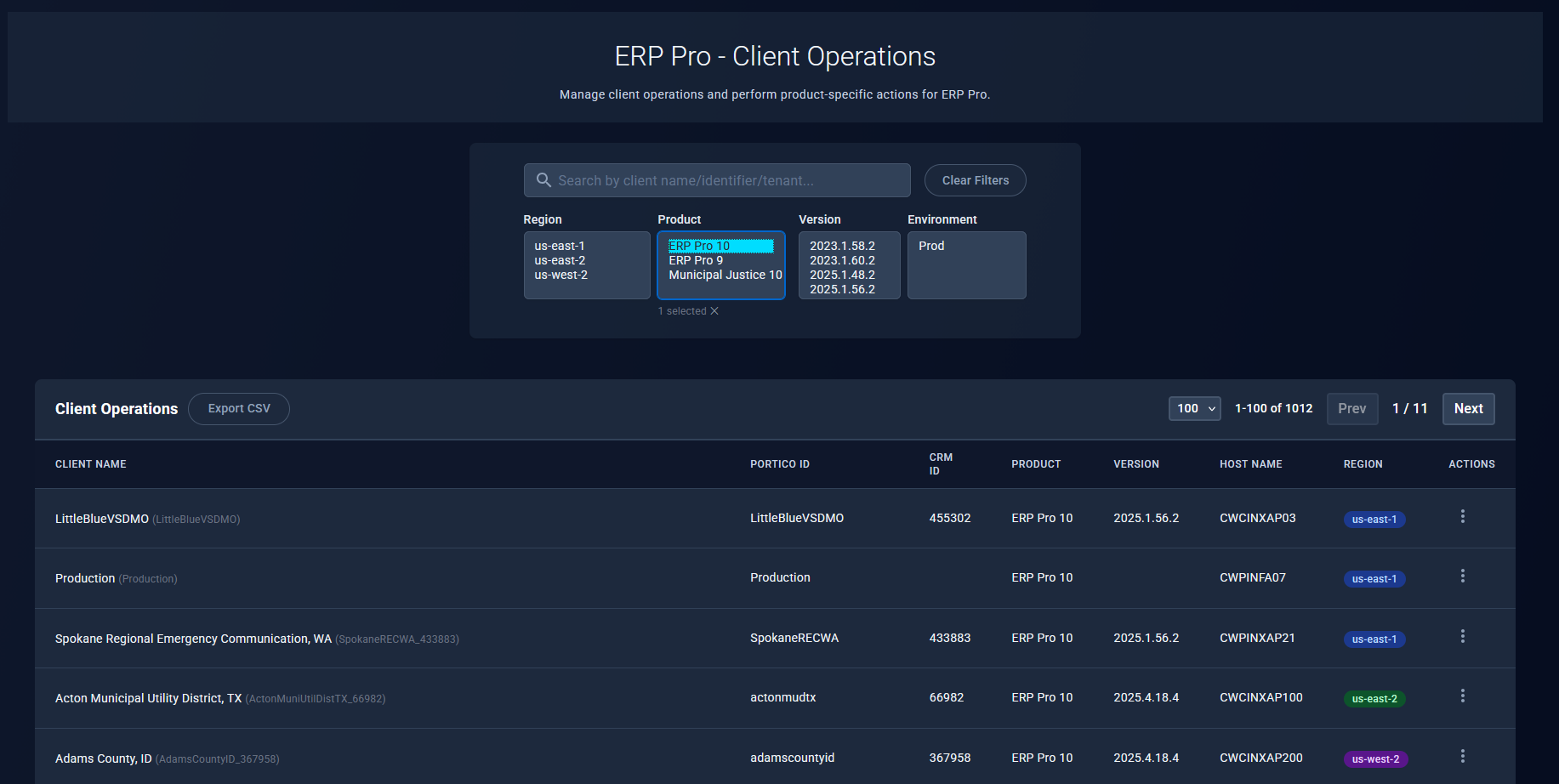
- Navigate to Product → ERP Pro → Client Manager
- Find your client in the list using search or filters
- Click the Actions menu (three dots) in the client row
- Select the operation you want to perform
Available Operations
Form Exchange
Upload and deploy form files to client servers.
Use this for:
- Uploading new form packages from ERP Pro v9 application
- Downloading forms for editing
- Scheduling deployment of edited forms to production
View Locks (v9 only)
View and manage ACUCOBOL file locks on ERP Pro v9 servers.
Use this for:
- Troubleshooting stuck user sessions
- Viewing all active file locks
- Unlocking specific files or user sessions
- Identifying file contention issues
See: v9 File Locks
Machine Info (Modal)
View detailed server and instance information.
Information displayed:
- Instance ID and name
- AWS region and availability zone
- Instance type and platform
- VPC and networking details
- Private IP address
How to access:
- Click the Region badge in any client row
- Or select from Actions menu
Operation Workflows
Form Exchange Workflow
- Actions → Form Exchange
- Enter Case ID
- Select action:
- New Upload: Generate credentials for initial upload
- Download/Edit: Download files for editing
- Schedule/Push Update: Deploy edited files to production
File Locks Workflow
- Actions → View Locks
- System loads active file locks from server
- Review locks by user, file, or lock type
- Use Actions menu on locks to unlock if needed
Common Tasks
Deploying Form Updates
Scenario: Forms Dev team has updated forms that need deployment
- Navigate to client in Client Manager
- Actions → Form Exchange
- Enter Case ID
- Select “Schedule/Push Update”
- Choose DONE location with edited files
- Review files and continue to schedule
- Set deployment time (immediate or scheduled)
- Submit schedule
Troubleshooting Stuck User Session
Scenario: User reports application is frozen, files locked
- Navigate to client in Client Manager
- Actions → View Locks
- Filter by username
- Review locked files
- Actions → Unlock by Client (removes all locks for that user)
- Notify user to log back in
Checking Server Information
Scenario: Need to verify which server/region a client is on
- Navigate to client in Client Manager
- Click Region badge (or Actions → Machine Info)
- Review instance details, region, platform
- Note instance ID for support tickets if needed
Best Practices
Before Operations
- Verify client: Confirm you have the correct client selected
- Check permissions: Ensure you have necessary permissions
- Coordinate: Notify affected users if operation may disrupt work
- Document: Note reason for operation in ticketing system
During Operations
- Monitor progress: Watch for completion/failure status
- Stay available: Be ready to respond if issues occur
- Keep records: Document what was done
After Operations
- Verify success: Confirm operation completed as expected
- Notify users: Let affected users know operation is complete
- Follow up: Check if any issues need addressing
Permissions
Different operations require different permissions:
- Form Exchange:
UPLOAD_SERVICE_ACCESS - View Locks:
LOCKS_VIEW - Unlock Locks:
ERPPRO_LOCKS_UNLOCK - Client Operations View:
CLIENT_OPS_VIEW
Contact administrators if you need additional permissions.
Troubleshooting
Can’t See Actions Menu
Solution:
- Verify you have
CLIENT_OPS_VIEWpermission - Refresh the page
- Contact administrators for access
Operation Fails
Solution:
- Check error message details
- Verify server is online
- Confirm you have necessary permissions
- Review related documentation for specific operation
- Contact TOC CloudOps if issue persists
Wrong Client Selected
Solution:
- Cancel operation if possible
- Navigate back to Client Manager
- Use search/filters to find correct client
- Always verify client name before proceeding
Related Documentation
- Overview - Client Manager introduction
- Form Exchange - Form deployment workflow
- v9 File Locks - Lock management guide
Support
For help with client operations:
- System Issues: Contact TOC CloudOps
- Permission Issues: Contact administrators
- General Questions: Consult this documentation or create support ticket