Form Exchange Overview
Introduction to form file management for ERP Pro v9
Form Exchange (Form Management)
The Form Exchange system manages the complete workflow for updating form files in ERP Pro v9, from uploading to editing to deploying changes to production servers.
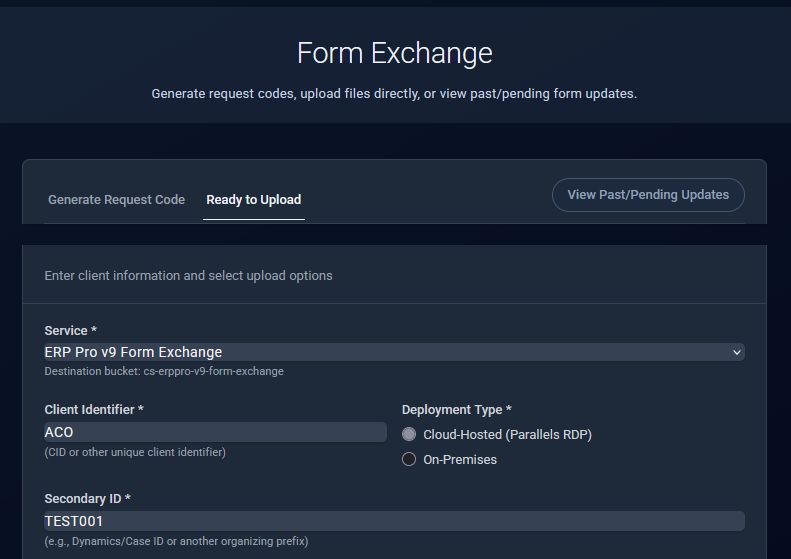
Overview
The form management workflow involves coordination between Support Team and Forms Development Team:
- Support generates upload credentials → Pastes credentials in ERP Pro v9 software to upload Forms files/package to S3. Alert Forms Dev team they are waiting via CRM notification/email.
- Forms Dev downloads files → Edits forms files locally
- Forms Dev uploads edited files → Alert Support via CRM that they are “Ready” for deployment
- Support schedules deployment → Automated push to production servers
Workflow Stages
Stage 1: Initial Upload (Support Team)
Support generates secure credentials and uses the ERP Pro v9 application to upload the original forms package to S3 storage. Once uploaded, Forms Dev is notified via CRM.
Stage 2: Download & Edit (Forms Dev)
Forms developers download the files from S3, edit them locally, and test changes before marking them ready for production deployment.
Stage 3: Upload Edited Files (Forms Dev)
After editing and testing, Forms Dev uploads the edited files to a designated “DONE” location in S3, then notifies Support via CRM that files are ready.
Stage 4: Schedule Deployment (Support Team)
Support schedules the automated deployment of edited files to production servers, specifying timing and destination details.
Stage 5: Automated Execution (System)
The system automatically pushes files to production servers at the scheduled time using AWS Systems Manager.
Key Features
- Secure Credentials: Time-limited request codes with configurable expiration
- Version Tracking: Separate locations for original and edited files
- Flexible Scheduling: Deploy immediately or schedule for maintenance windows
- Batch Operations: Group related files with batch labels
- Automated Deployment: Hands-free execution via AWS Systems Manager
- Status Tracking: Monitor PENDING → IN_PROGRESS → COMPLETED states
User Roles
Support Team
- Generate upload credentials
- Navigate File Exchange interface
- Schedule production deployments
- Monitor deployment status
- Coordinate with Forms Dev and clients
Forms Development Team
- Download forms from S3
- Edit forms locally
- Test changes
- Upload edited files to “DONE” location
- Notify Support when ready
Navigation
All Form Exchange operations start from:
Product → ERP Pro → Client Operations → [Select Client] → Actions → Form Exchange
From there, you’ll select your workflow action:
- New Upload: Generate credentials for initial upload
- Download/Edit: Download files for editing
- New Upload → Ready to Upload tab: Upload edited files
- Schedule/Push Update: Schedule deployment to production
See Also
ERP Pro Features
Related SEP Features
For School ERP Pro update management:
Related Documentation
- Process Flow Chart - Summarized steps with basic and swimlane flow diagrams
- Complete Workflow - Detailed step-by-step process
- Troubleshooting - Common questions and solutions
Getting Help
For Support Team:
- Contact TOC CloudOps for system issues
- Review deployment logs for errors
For Forms Development:
- Contact Support Team for new request codes
- Report issues to TOC Support